
AirPlay and Chromecast may look like they do the same thing, but under the hood they rely on completely different technologies, and so you can't natively AirPlay to Chromecast. If you're wondering how to AirPlay to Chromecast from iPhone, iPad, or MacBook, the good news is that it's still possible with the help of third-party apps. These tools act as a bridge, letting you enjoy smooth screen mirroring or casting even when Apple and Google's ecosystems don't play nicely together. In this guide, we'll walk you through the best ways to connect your Apple device to Chromecast.
Why You Can't AirPlay to Google Chromecast Directly
Apple devices are built around AirPlay, while Chromecast devices rely on Google Cast. AirPlay and Google Cast are completely different systems, although both let you stream or mirror content over Wi-Fi. Since AirPlay and Google Cast aren't directly compatible, the AirPlay to Chromecast not working issue happens.
See AirPlay vs Chromecast:
| Feature | AirPlay | Chromecast (Google Cast) |
|---|---|---|
| Developer | Apple | |
| Compatible devices | iPhone, iPad, Mac, Apple TV, some smart TVs | Android phones, Chromecast built-in TVs, devices with Chromecast-enabled apps |
| Connection Method | Wi-Fi (AirPlay without Wi-Fi also possible) | Wi-Fi only |
| Primary Use | Screen mirroring and media streaming from Apple devices | Casting content from apps or Google Chrome browser |
| Native Support | Work seamlessly with Apple ecosystem | Works seamlessly with Google ecosystem |
| Cross-Platform Support | Limited (mainly Apple devices) | Broad (works with Android, iOS, Windows, macOS, Chrome browser) |
| Third-Party Support | Few non-Apple apps without AirPlay | Wide range of apps are Chromecast-enabled |
| Best For | Apple users who want smooth mirroring | Users who want app-based casting across devices |
How to AirPlay to Chromecast from iPhone or Mac
Even though AirPlay and Chromecast don't talk to each other natively, there are a few simple workarounds that make it possible to stream from your iPhone, iPad, or Mac to a Chromecast device. Depending on what you need (like full screen mirroring or app-based casting), you can pick the method that works best for you.
Method 1. Use PigeonCast
PigeonCast is a free AirPlay to Chromecast app designed for easy cross-platform streaming. By combining support for AirPlay, Google Cast, and DLNA, it acts as a bridge between your Apple device and a Chromecast.
For instance, once you set up the app on your iPhone, your device gains Google Cast capabilities, allowing you to stream content to a Chromecast smoothly, even though AirPlay and Chromecast are natively incompatible.
 How to AirPlay to Chromecast from iPhone with PigeonCast:
Step 1. Download and install the PigeonCast app on iPhone.

PigeonCast Screen Mirroring

Official Download


Step 2. Check your Chromecast's Wi-Fi connection and ensure that your iPhone is on the same Wi-Fi network.
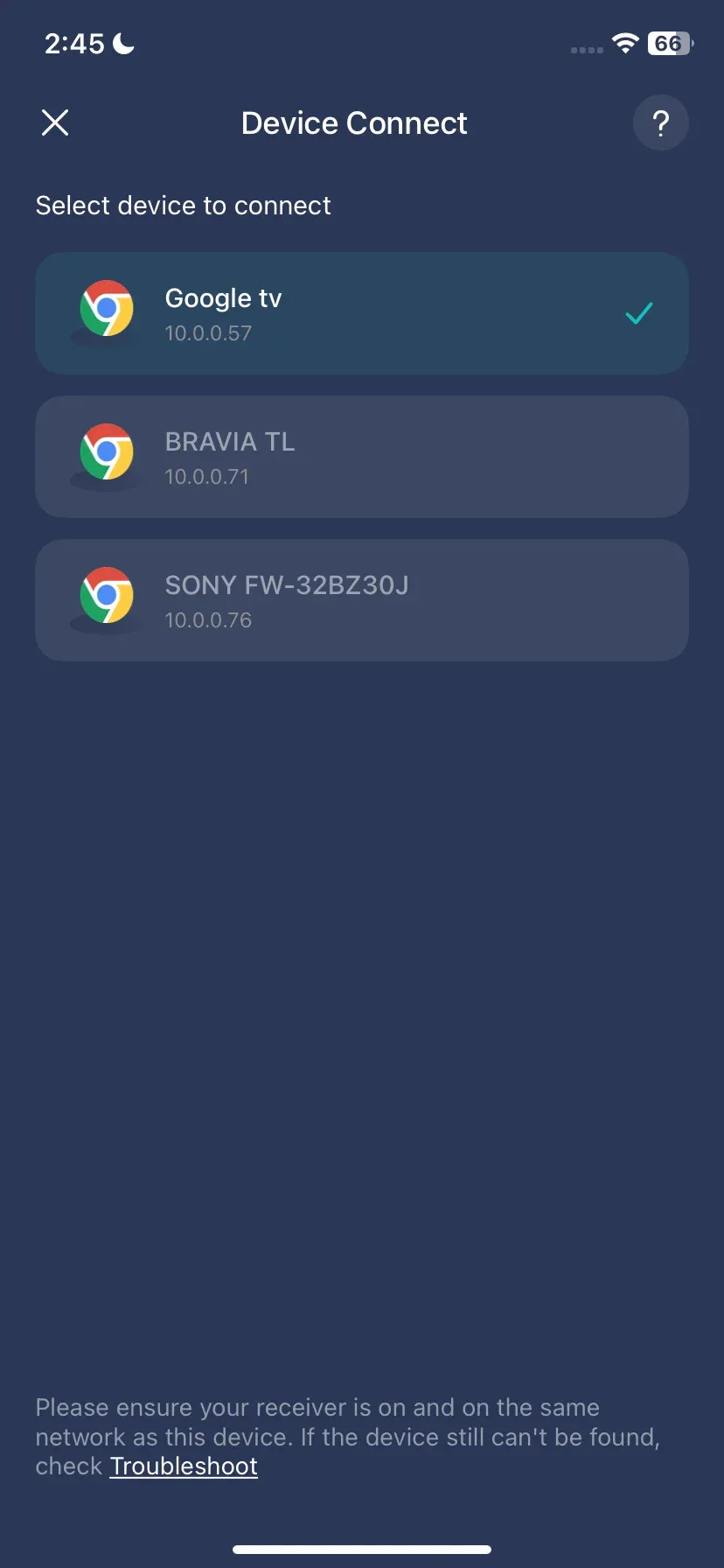
Step 3. Launch the PigeonCast app on your iPhone and choose your Chromecast from the list of available devices.
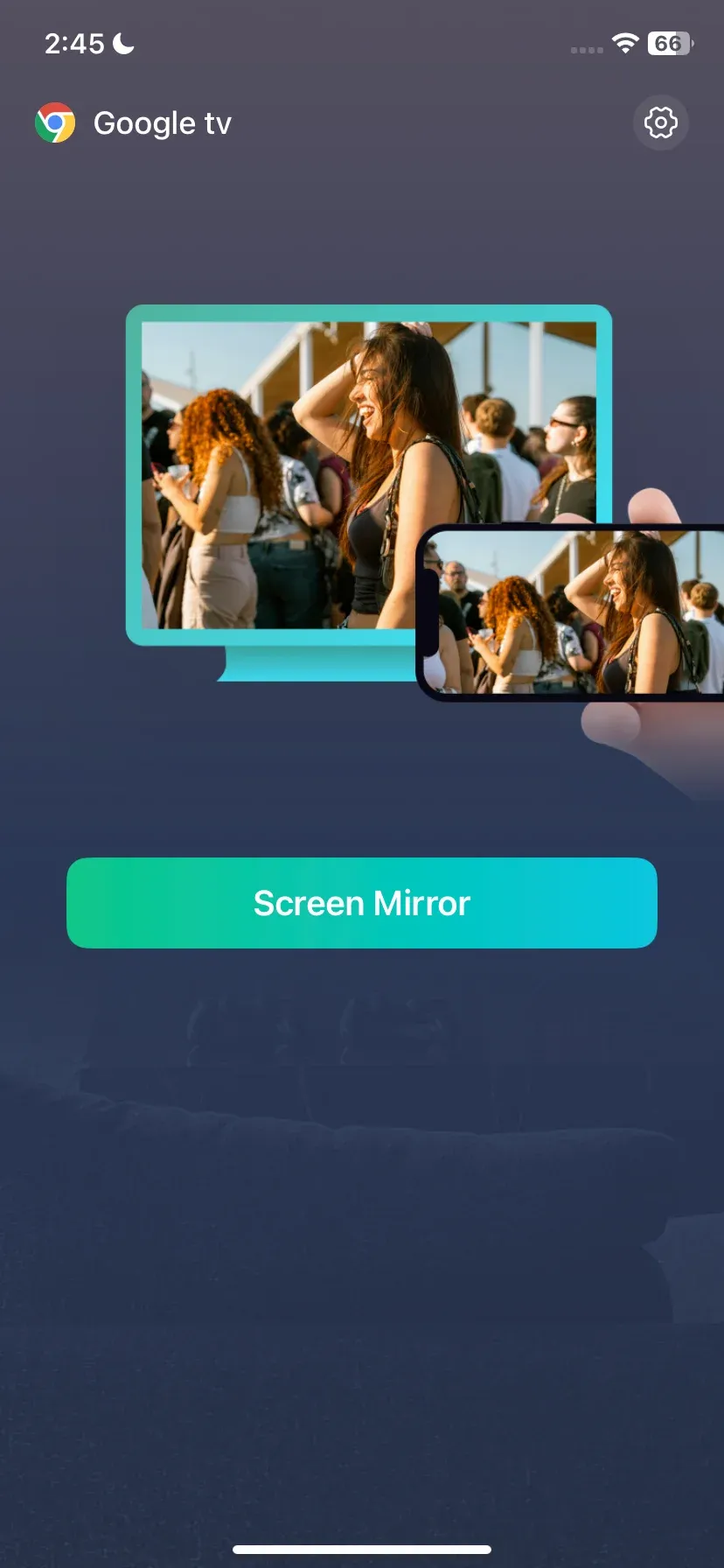
Step 4. Once connected, tap the Screen Mirror option on the app to mirror your iPhone's screen to the connected device.
Why use PigeonCast:
- A wide range of devices is supported: Android, iPhone, iPad, Mac, Windows, Android TV, and Apple TV
- Multiple protocols are supported: AirPlay, Google Cast, and DLNA
- Free and easy to use: the third-party app is free to download and allows AirPlay to Chromecast free. Its clear interface makes the setup process simple.
Method 2. Use a Chromecast-Enabled App
Some apps, like Netflix, YouTube, and Hulu, let you stream videos from your iPhone directly to a Chromecast. Since these apps are Google Cast-enabled, you can cast content without needing AirPlay, bypassing the fact that native AirPlay-to-Chromecast streaming isn't possible.
To Chromecast from iPhone, you can:
Step 1. Ensure your iPhone and Chromecast are on the same Wi-Fi network.
Step 2. Launch a Chromecast-enabled app on your iPhone.
Step 3. Tap the Cast button on the app interface.
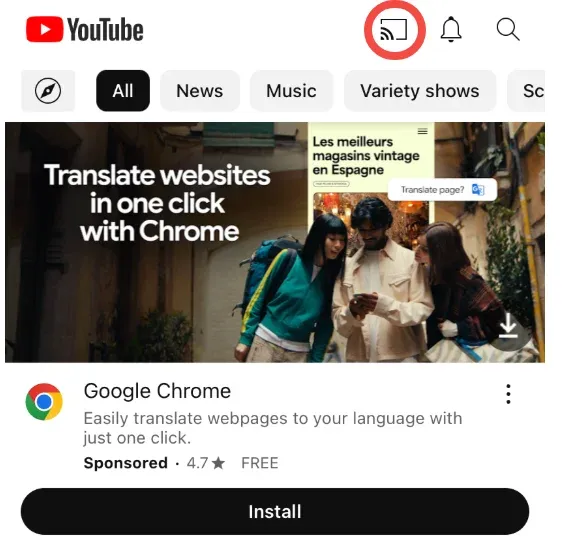 Step 4. Choose your Chromecast from the list.
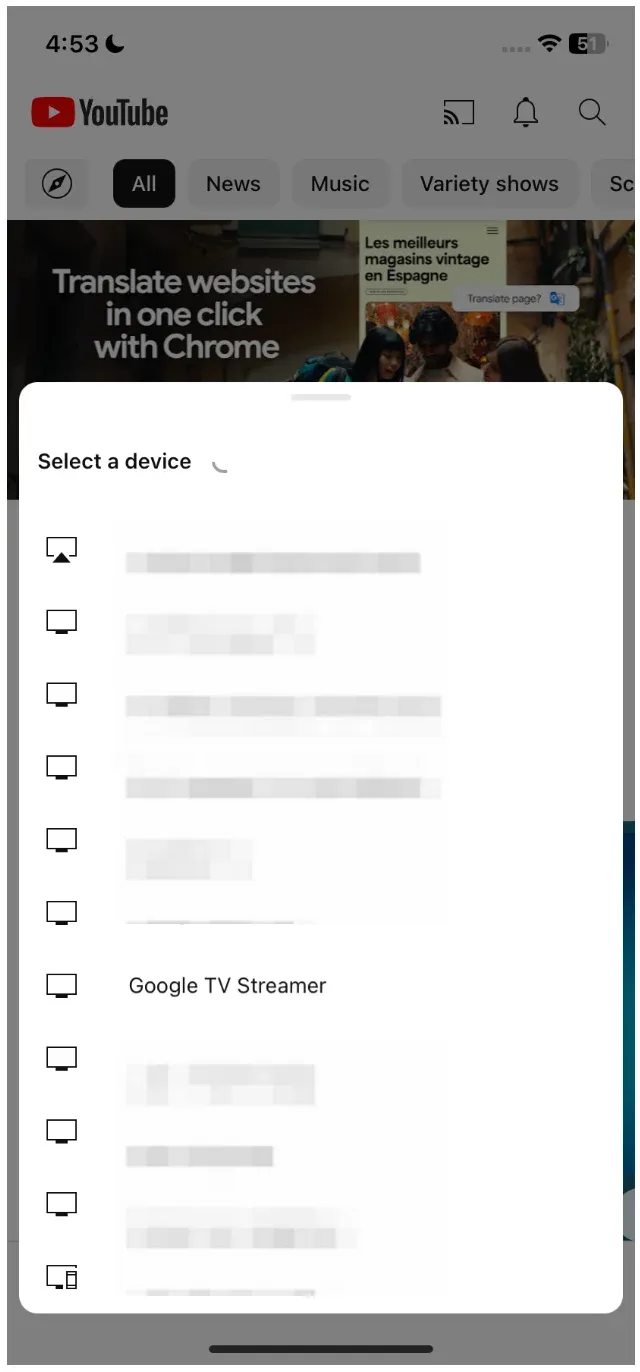
Step 5. Once connected, choose a video you want to stream from your iPhone.
Method 3. Use AirMirror
The first two methods let your iPhone act as a Google Cast sender, while the third method turns your Chromecast-enabled TV (running Android TV) or Chromecast with Google TV into an AirPlay receiver, bridging the gap between Apple and Google devices.
Third-party apps like PigeonCast or AirMirror make this process even easier, allowing you to mirror your iPhone, iPad, or Mac screen directly to a Chromecast without any complicated setup. With these tools, you can stream videos, share photos, or even present slides on the big screen smoothly and reliably.
Here's how to AirPlay to Chromecast iPhone:
Step 1. Confirm your iPhone and Chromecast or TV are on the same Wi-Fi network.
Step 2. Download the AirPlay receiver app on your Chromecast or TV and launch it.
Step 3. On your iPhone, go to the Control Center and tap the Screen Mirroring icon.
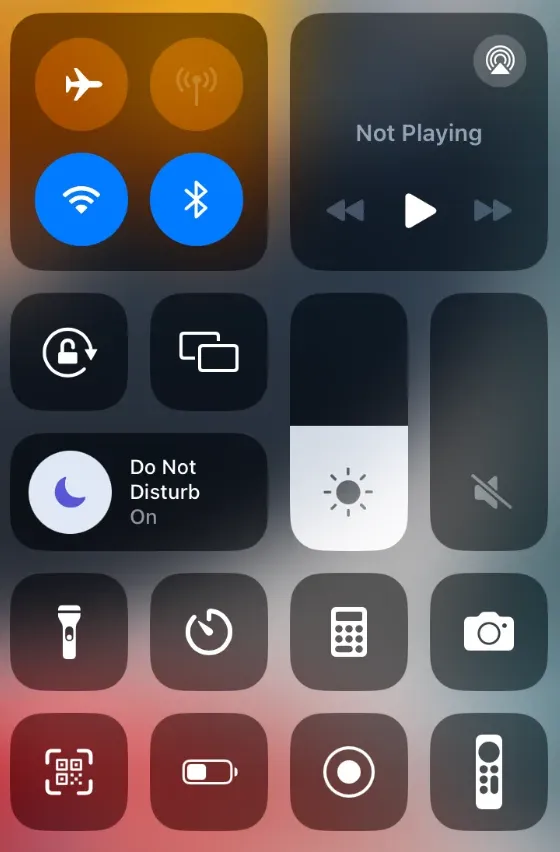
Step 4. Choose your Chromecast or TV from the available devices. Keep in mind that it might appear under the name assigned by the app you're using.
Wrapping Up
AirPlay to Chromecast isn't natively possible, but with the right tools, you can still stream or mirror your Apple device to a Chromecast. Whether you use a third-party app like PigeonCast or AirMirror, or rely on a Google Cast-enabled app, there are reliable ways to enjoy your iPhone, iPad, or Mac content on the big screen. With these methods, bridging Apple and Google ecosystems has never been easier.
AirPlay to Chromecast FAQs
Q: Can you AirPlay to Chromecast?
No, you can't AirPlay to Chromecast from any Apple device without extra help. AirPlay is incompatible with the Google Cast technology Chromecast devices use. To stream content from an iPhone, iPad, or Mac to Chromecast, you need third-party apps, like PigeonCast, Netflix, or AirMirror.
Q: Does Chromecast have AirPlay?
No, Chromecast doesn't support AirPlay natively. AirPlay is Apple's proprietary streaming protocol, while Chromecast uses Google Cast. To get them to work together, you'll need a third-party app that bridges the two systems.
Q: Why can't I stream from iPhone to Chromecast?
By default, iPhones use AirPlay, which isn't compatible with Chromecast's Google Cast technology. That's why you can't directly stream or mirror your iPhone screen to a Chromecast without a workaround.
Q: Can you do AirPlay on Chromecast?
Not directly. AirPlay isn't built into Chromecast. However, apps like PigeonCast or AirMirror can turn your Chromecast or Chromecast-enabled TV into an AirPlay receiver, letting you mirror your Apple device.
Q: How to AirPlay Netflix to Chromecast?
You don't need AirPlay for Netflix. Since Netflix is a Google Cast-enabled app, you can cast directly from the Netflix app on your iPhone or iPad to a Chromecast without any additional tools. Just open Netflix, tap the Cast icon, and select your Chromecast.
Q: What devices are compatible with AirPlay?
AirPlay works on Apple devices like iPhone, iPad, Mac, and Apple TV, as well as certain smart TVs from brands like Samsung, LG, Sony, and Vizio that support AirPlay 2. Some third-party apps like PigeonCast can extend compatibility to other devices as well.
Mia Clarke is a technology editor specializing in screen mirroring and casting solutions across multiple platforms. Mia provides clear, practical guides and in-depth insights to help users seamlessly connect their devices. Passionate about enhancing digital experiences, Mia is dedicated to keeping readers updated on the latest trends and tools in cross-platform screen sharing. Whether you’re looking to mirror your smartphone, laptop, or smart TV, Mia’s content delivers reliable, user-friendly advice to simplify your tech setup.